Mermaid for Confluence

Diagrams as code, on your Confluence pages

Atlasmaid renders Mermaid diagrams on Confluence Cloud pages. Write the code in a live-preview editor and get crisp, scalable diagrams that follow light and dark mode. Everything renders in the browser, and no data leaves Confluence.
Version 1.1.1  ·  by KODICE  ·  Confluence Cloud

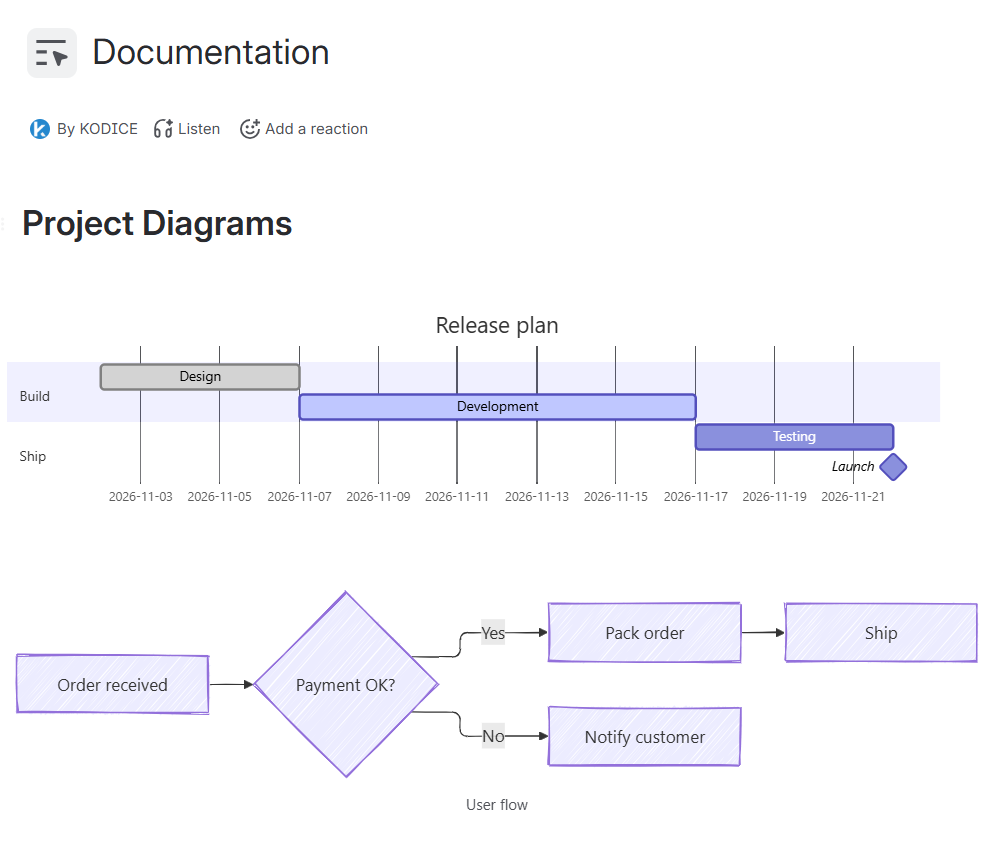
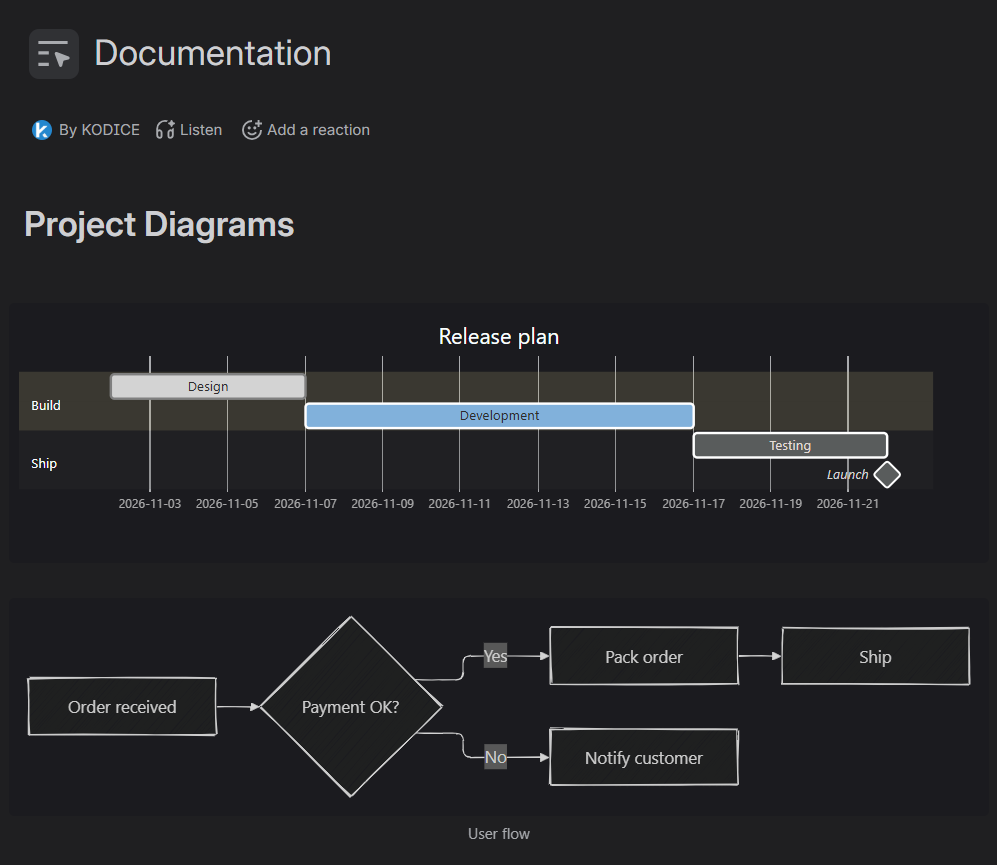
A Confluence page
A Confluence page titled Documentation, with a Release plan Gantt chart (Design, Development, Testing and a Launch milestone) and a hand-drawn flowchart from Order received through Payment OK? to Pack order, Ship and Notify customer. The same Confluence page in dark mode: the Release plan Gantt chart and the hand-drawn flowchart on dark backgrounds with light lines and text.
Why Atlasmaid

Write it, see it, keep it on the page

Authors get a proper editor, readers get a diagram they can explore, and your data stays where it already lives.

A live-preview editor

Code, a large live preview and a settings inspector, all visible at once. The diagram is shown on a simulated Confluence page, in light or dark.

Readers zoom, go full screen and export

A toolbar on hover offers zoom, copy code, SVG and PNG download, and a full-screen viewer. Diagrams stay sharp at any size.

Private by design

No external network calls, no backend and no storage. Diagram code and settings live inside the Confluence page, under your site's normal permissions.

For authors

One editor, three zones

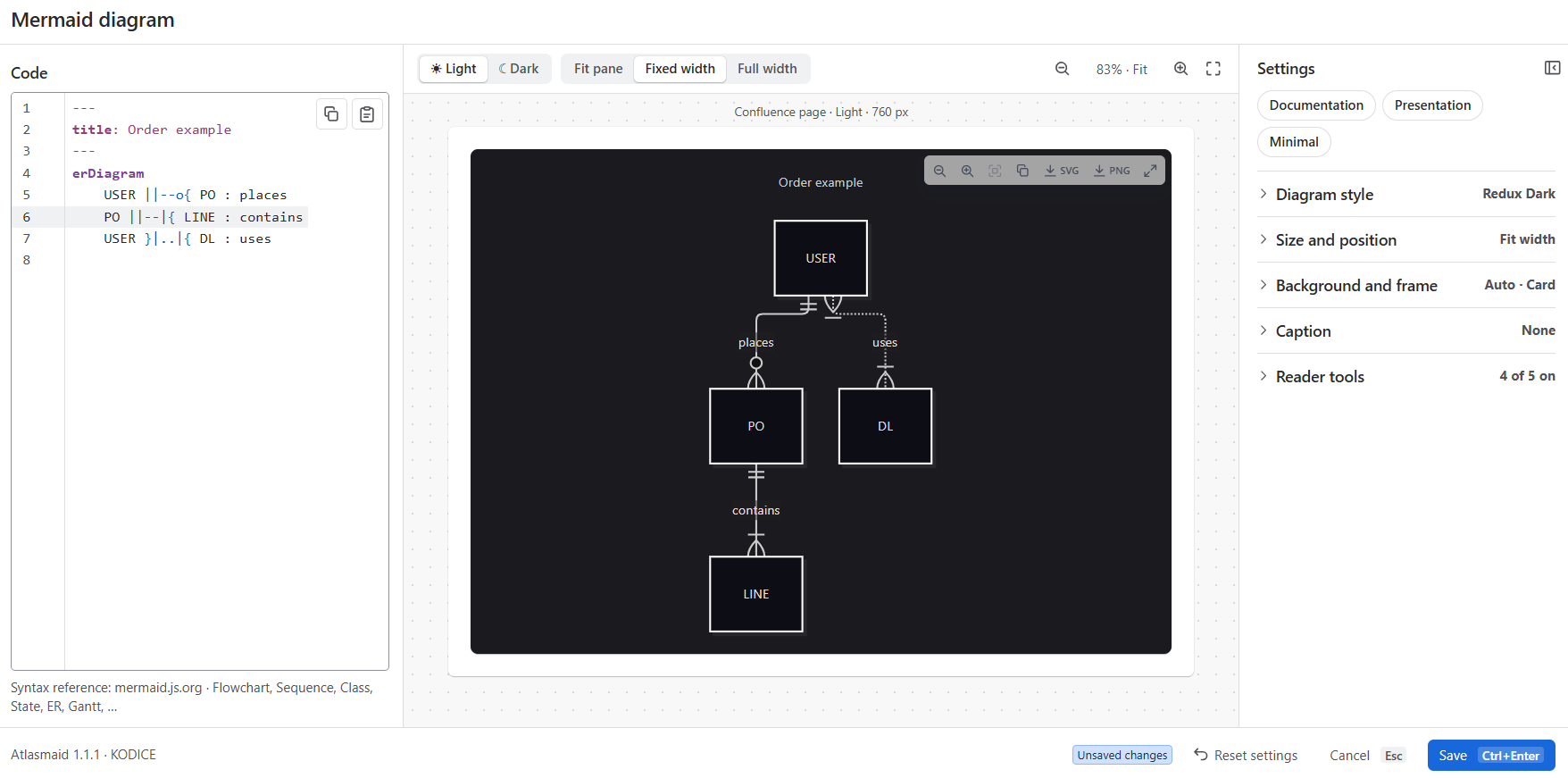
Insert with /mermaid or from Insert elements → Data & charts and the editor opens straight away. Code on the left, a large live preview in the centre, collapsible settings on the right.
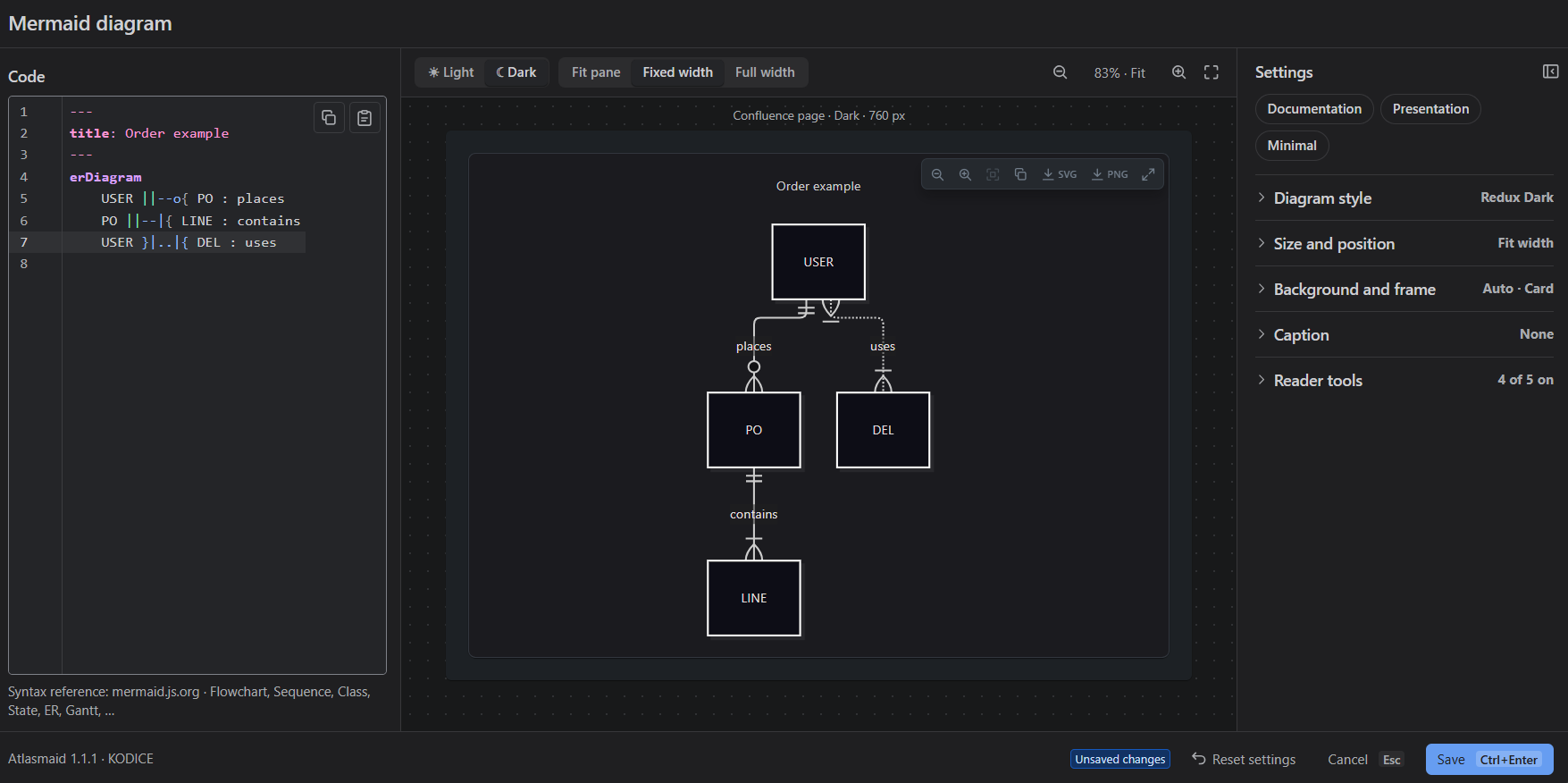
The Atlasmaid macro editor
The Atlasmaid editor in light mode. Mermaid code for an Order example entity-relationship diagram is on the left, a live preview of the diagram on a simulated Confluence page is in the centre, and the settings panel with Documentation, Presentation and Minimal presets is on the right. The Atlasmaid editor in dark mode, with the code, the live preview on a dark simulated Confluence page, and the settings panel.
Up close

Everything within reach

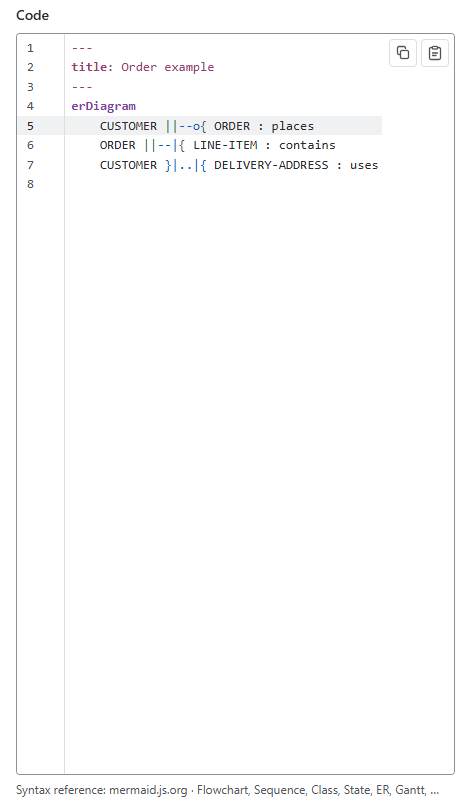
The code pane: a line-numbered Mermaid editor holding an Order example entity-relationship diagram, with copy and paste buttons in the corner.
CodeMermaid highlighting, line numbers, copy and paste.
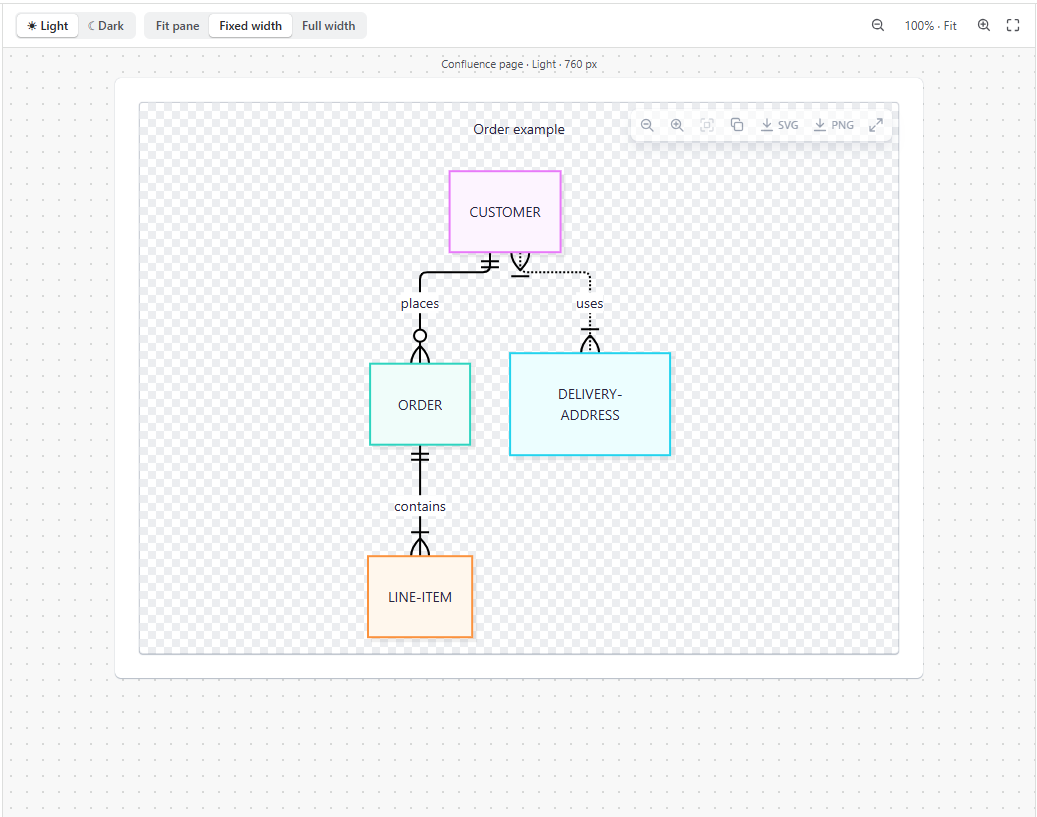
The live preview pane: the Order example diagram on a simulated Confluence page over a checkerboard, with a hover toolbar offering zoom, copy, SVG and PNG download and full screen.
Live previewA simulated page, with the reader toolbar on hover.
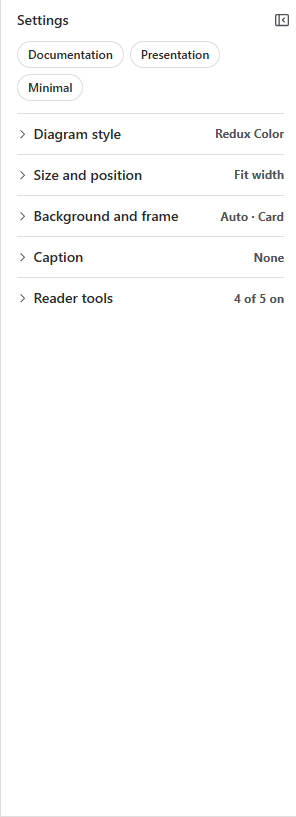
The settings inspector: Documentation, Presentation and Minimal presets above collapsible sections for Diagram style, Size and position, Background and frame, Caption and Reader tools.
SettingsPresets and collapsible sections.
Fix mistakes fast

Errors you can act on

When the Mermaid code has a mistake, the failing line is underlined and marked in the gutter. The preview explains the problem, and an Error on line N badge and a Go to line button take you straight to it.

Save anyway keeps work in progress, so an unfinished diagram never costs you your changes.
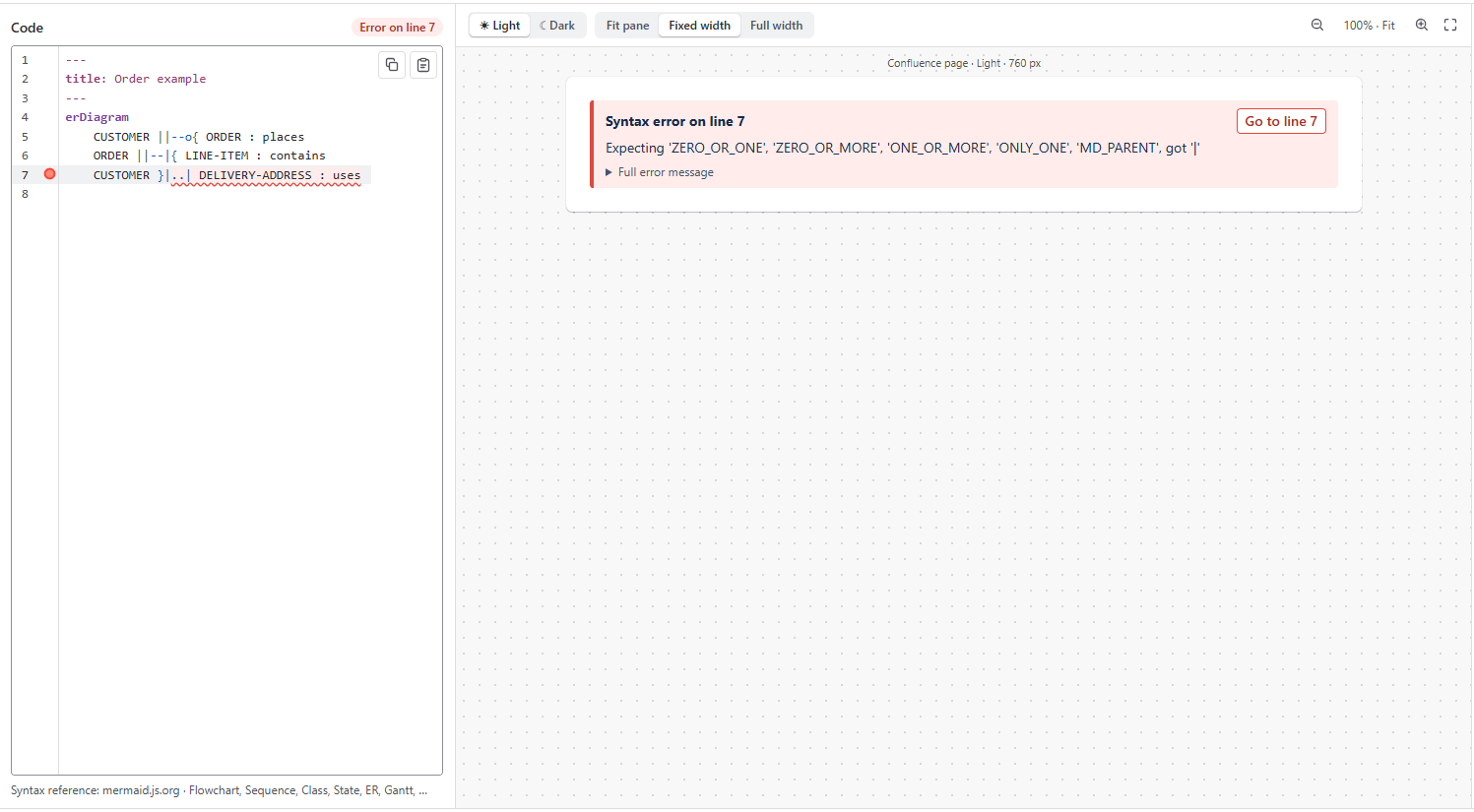
The editor showing a syntax error: line 7 of the code is underlined in red with a gutter marker, an Error on line 7 badge sits above the code, and the preview shows a Syntax error on line 7 message with a Go to line 7 button.
Same diagram, light and dark
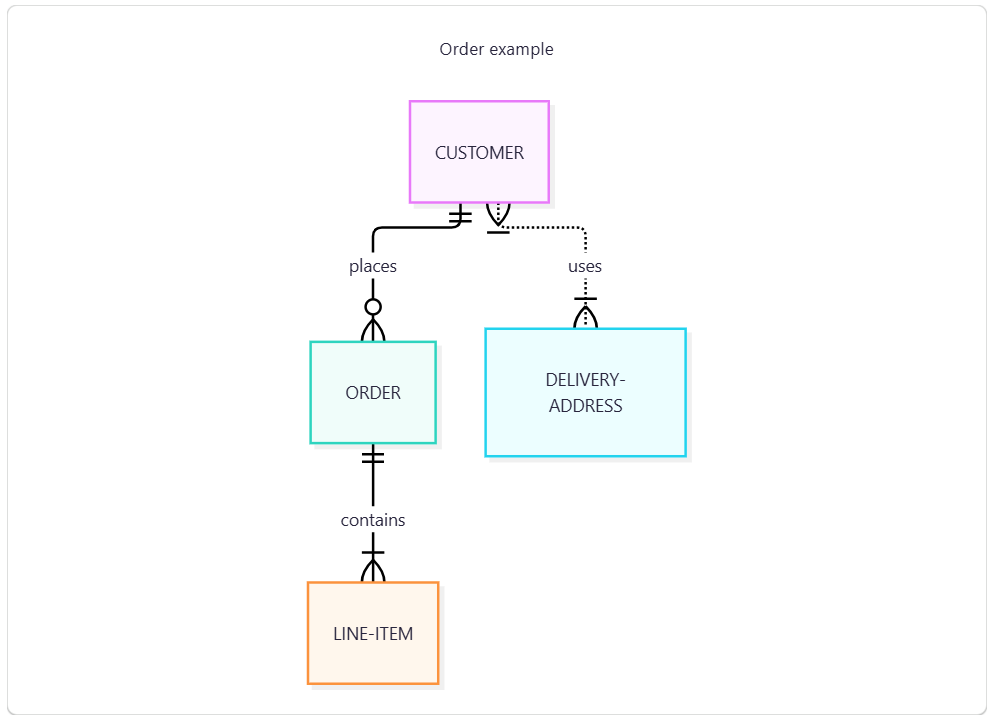
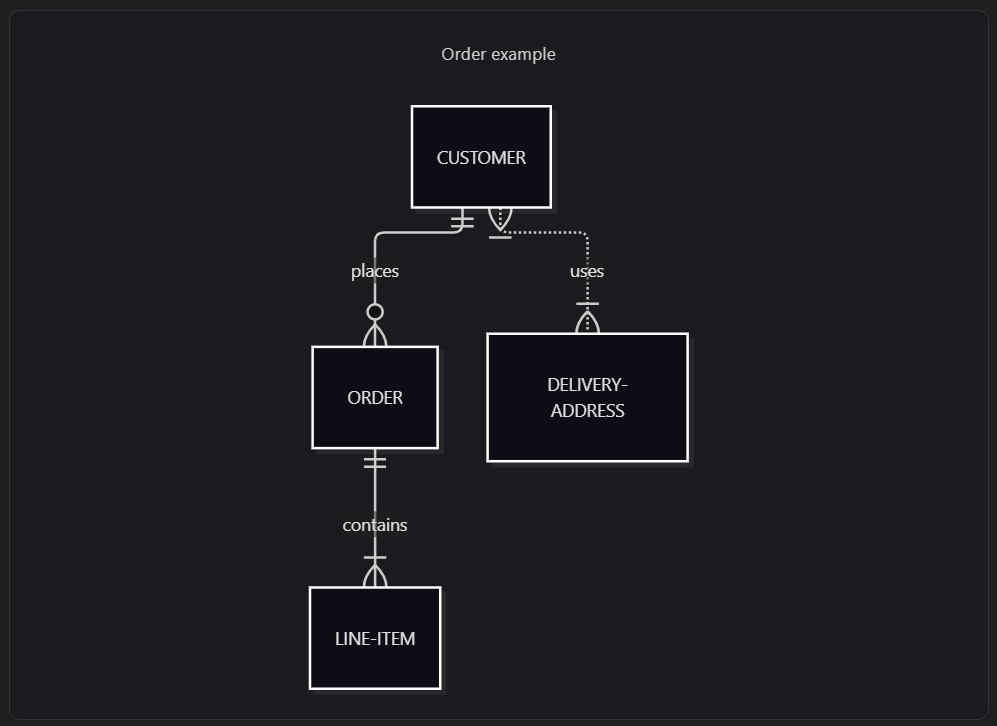
An entity-relationship diagram titled Order example in a bordered card. Pastel-coloured CUSTOMER, ORDER, DELIVERY-ADDRESS and LINE-ITEM boxes are joined by the relationships places, uses and contains. The same Order example diagram on a dark background, with dark boxes and light outlines and text.
For readers

Sharp diagrams that follow light and dark mode

Diagrams are scalable SVG and follow Confluence's light and dark mode. On Auto, dark themes get a dark background and light themes get white on a dark page, so they stay readable in both.

  • Toolbar on hover: zoom in, out and reset, copy code, download SVG or PNG, open full screen.
  • Zoom and pan: Ctrl/⌘ + scroll or a trackpad pinch to zoom, drag to pan, double-click to reset. A plain scroll still scrolls the page.
  • Full-screen viewer, where the scroll wheel zooms directly.
  • Keyboard accessible: focus the diagram, then + and - zoom, 0 resets and the arrow keys pan.
Display settings

Make it look the way you want

Pick a preset, or fine-tune every detail. Settings are saved with the macro, so each diagram can look different.

Nine themes

Choose from rendered swatches: Default, Neutral, Neo, Redux, Redux Color, Dark, Neo Dark, Redux Dark and Redux Dark Color. Auto follows Confluence light and dark.

Three looks

Classic, Neo or Hand-drawn.

Two edge styles

Curved (dagre) or Right-angle (ELK layout).

Size and alignment

Fit the page width, natural size or a fixed height, aligned left, centre or right.

Background and frame

Auto, Transparent, Theme color or Custom color, with no frame, a border or a card.

Caption and code

Add a caption and an optional View Mermaid code section under the diagram.

Presets

Documentation, Presentation or Minimal, and Reset settings to go back to the defaults.

Reader tools

Choose which toolbar buttons readers see.

For power users

A config: block or %%{init}%% directive in the code wins. Those settings show as Set in code and are locked.

FlowchartSequenceClassStateER GanttPieMindmapTimelineGit graphand more
Security and privacy

Private by design

Everything renders in the reader's browser. Nothing leaves your Confluence site.

No external network calls

The manifest declares no external hosts. Mermaid, ELK and CodeMirror are bundled into the app, so no CDN, fonts or scripts load from outside.

No backend, no storage

No Forge functions, no OAuth scopes and no Forge storage. Diagram code and settings are stored inside the Confluence page, under the site's normal permissions, retention and backup.

No personal data, no tracking

No analytics, cookies or telemetry.

Sanitised output

Mermaid runs with securityLevel: 'strict', which sanitises the SVG and disables scripts and click handlers inside diagrams.

One extra permission

Inline styles (content.styles: unsafe-inline), because Mermaid styles its SVGs inline.

Local downloads and copies

Downloads and copies happen in the browser, and only when the user asks.

Read the full privacy policy →

Good to know

What to expect

A few honest limits, so there are no surprises.

  • Confluence Cloud only. There is no Data Center or Server version.
  • PDF and Word exports. Diagrams don't appear in Confluence PDF or Word exports, because Confluence doesn't render Custom UI macros in exports.
  • Icons and external images. Icons in diagrams (fa:fa-…, icon packs) and external images don't load, because the app makes no network calls.
  • Bundled Mermaid version. Diagrams render with the bundled Mermaid version (12.2.0). A future Mermaid upgrade can change how existing diagrams look.

Questions about Atlasmaid?

We respond to emails within 24 hours.