Diagramaid adds a Mermaid diagram macro to Confluence. You write the diagram as text in a simple language called Mermaid, and the page shows it as a sharp, scalable picture. When something changes, you edit a few words instead of redrawing boxes and arrows.
This guide is for everyone who uses the app:
- Authors add and edit diagrams: start at Add your first diagram.
- Readers view diagrams on pages: go to Read and use a diagram.
Prefer to watch first? See the Diagramaid video for a short tour of the app.
#1. Before you start
- Who can add diagrams: anyone who can edit a Confluence page. Readers only need permission to view the page.
- Installation: a Confluence site administrator installs Diagramaid once for the whole site, from the Atlassian Marketplace. If you can't find the macro, ask your administrator.
- Browser: any current version of Chrome, Edge, Firefox or Safari.
- Mermaid knowledge: not required to get started. The editor has a ready-made example, and section 8 shows the most common diagram types.
#2. Add your first diagram
- Open a Confluence page and click Edit.
- Type
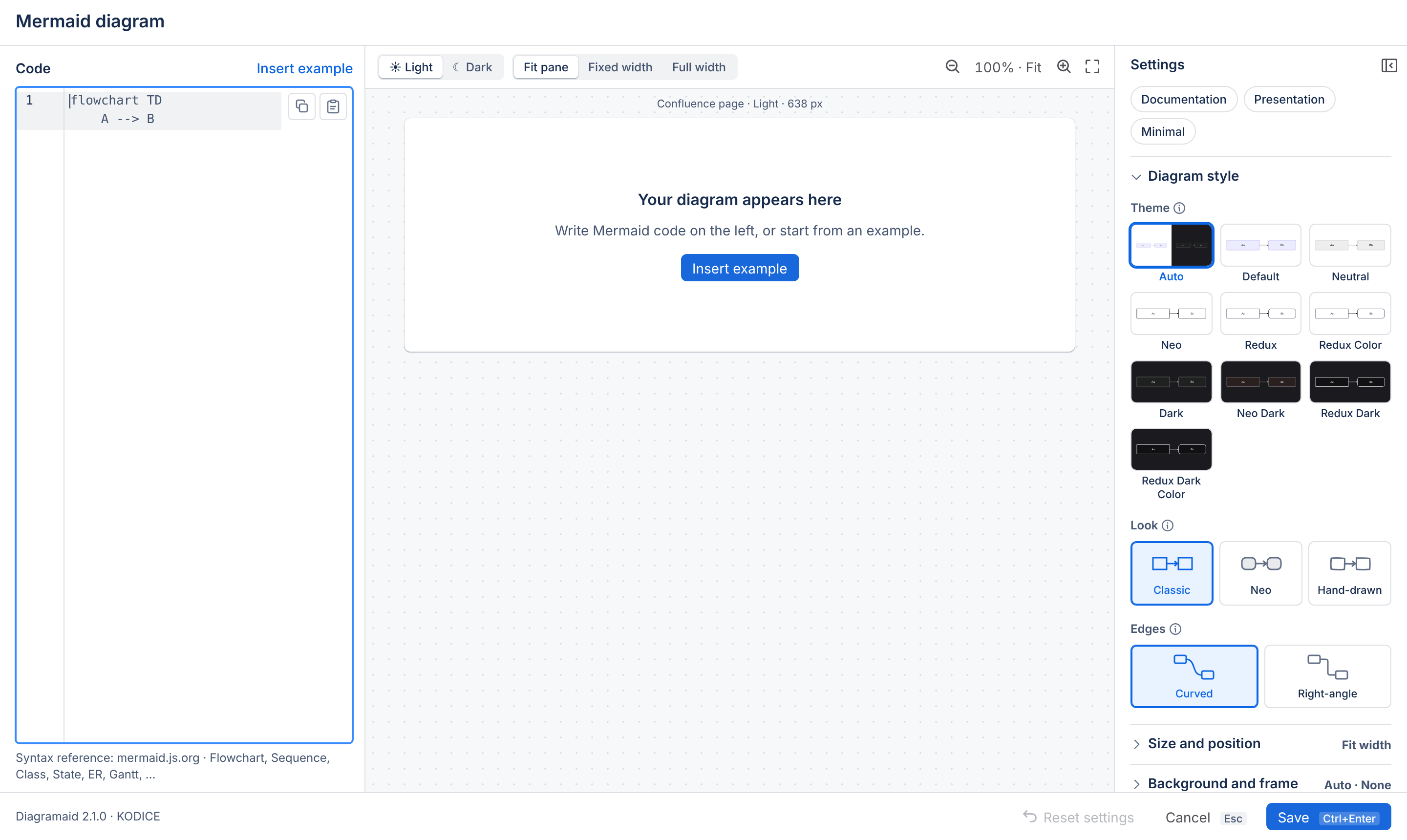
/mermaidand pick Diagramaid - Mermaid for Confluence. You can also open Insert elements (the + in the toolbar) and look under Data & charts. - The editor opens straight away. Write your Mermaid code on the left, or click Insert example to start from a sample.
- Check the preview in the centre.
- Click Save (or press Ctrl + Enter, ⌘ + Enter on a Mac).
- Publish or Update the page as usual.
Tip: the diagram is saved with the macro, inside the page. Page history, copying a page, templates and permissions all work as they do for the rest of the page content.
Edit an existing diagram
While editing the page, select the diagram and click the pencil (Edit) icon in the macro's toolbar. The editor opens with the saved code and settings.
A macro without a diagram
If a macro is saved without any code, the page shows a placeholder until someone adds a diagram:

#3. The editor at a glance
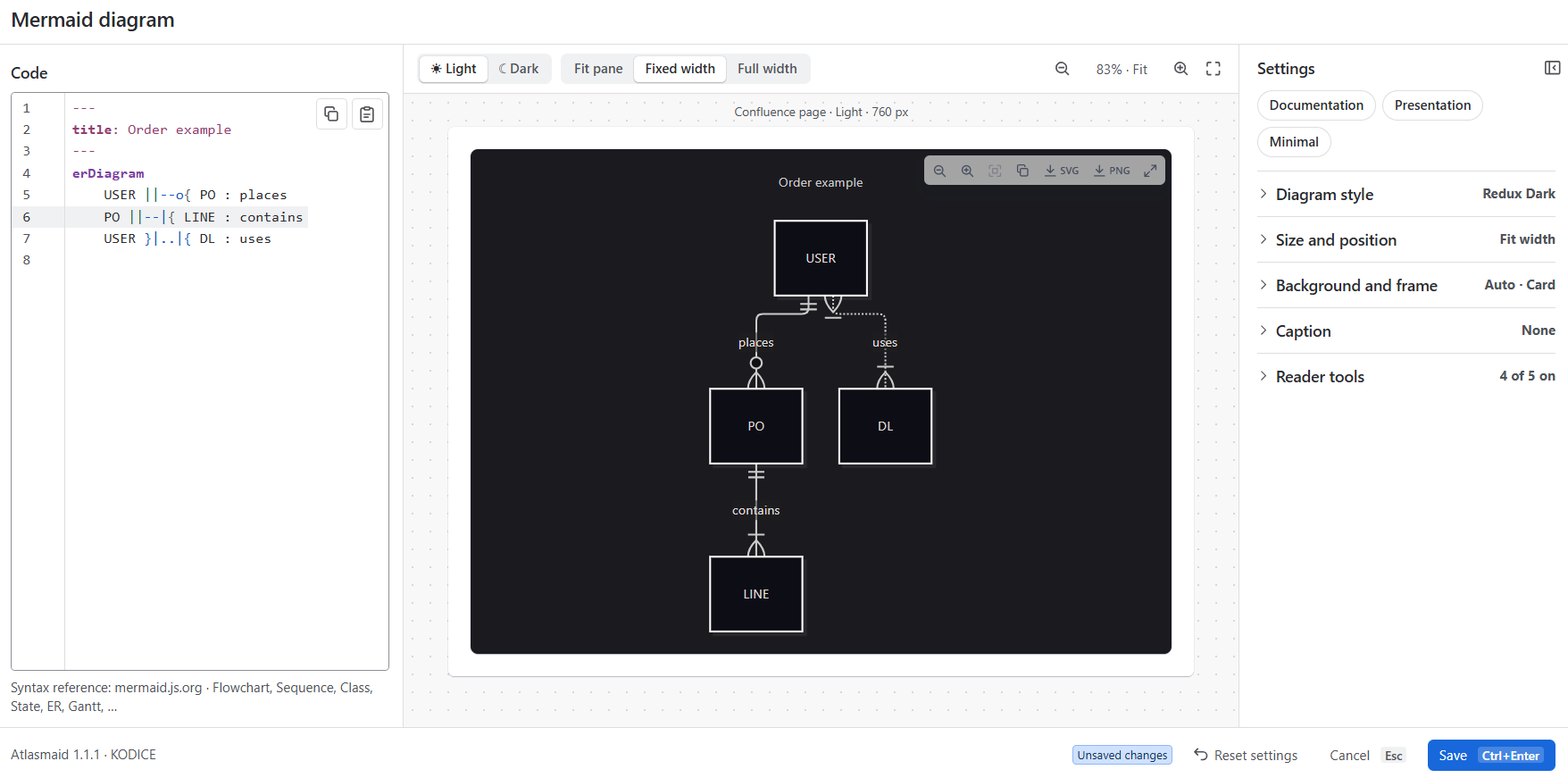
The editor has three areas, all visible at once:
| Area | What it's for |
|---|---|
| Code (left) | The Mermaid code of your diagram, with line numbers and colours for keywords, arrows and text. |
| Preview (centre) | Your diagram on a simulated Confluence page, updated as you type. |
| Settings (right) | Presets and display options: theme, size, background, caption and the tools readers get. |
The footer shows Unsaved changes while there are any, plus these buttons:
| Button | What it does |
|---|---|
| Reset settings | Puts all display settings back to their defaults. Your code is kept. |
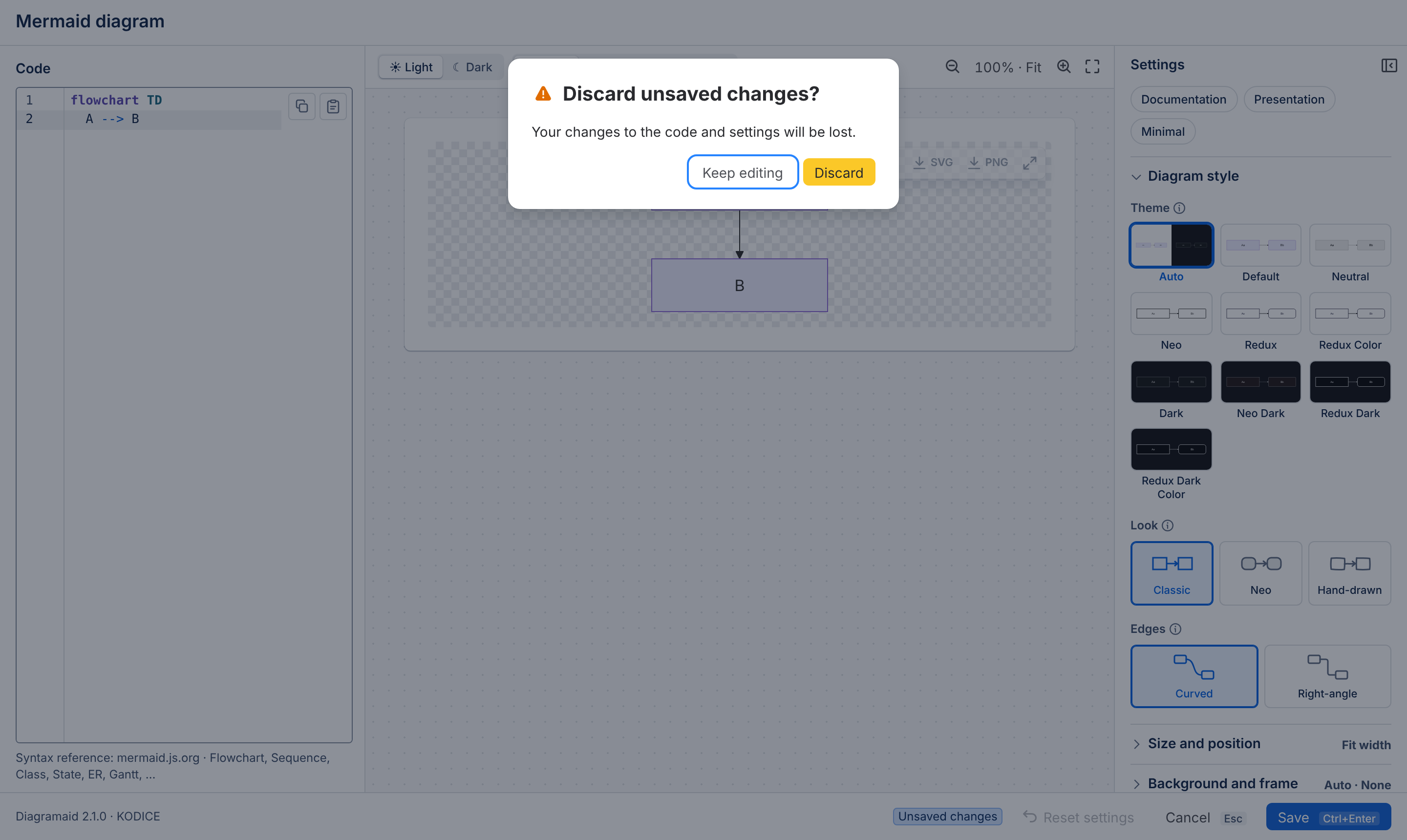
| Cancel (Esc) | Closes the editor without saving. If you changed something, it asks first. |
| Save (Ctrl/⌘ + Enter) | Saves the code and settings in the macro and closes the editor. It reads Save anyway if the code has an error (see 4.3). |
The preview toolbar
The bar above the preview lets you check the diagram the way readers will see it. These options only affect the preview; they are not saved.
| Control | What it does |
|---|---|
| ☀ Light / ☾ Dark | Shows the preview on a light or a dark Confluence page. Readers can use either mode, so check both. |
| Fit pane / Fixed width / Full width | Simulates a page as wide as the preview, a standard fixed-width page (760 px) or a full-width page. |
| − 100% · Fit + | Zooms the simulated page. Click the percentage to fit it to the preview again. |
| Focus (four-corner icon) | Hides the code and settings so the preview fills the editor. Press Esc or click the icon again to leave focus mode. |
The dimmed toolbar on the diagram shows which tools readers will get. It works on the published page, not in the preview.
Hide or show the settings
Click the panel icon at the top right of Settings to hide them and give the preview more room. Click Settings (or the panel icon at the edge) to show them again. In a narrow window the settings start hidden and open over the preview.
Keyboard shortcuts in the editor
| Shortcut | Action |
|---|---|
| Ctrl/⌘ + Enter | Save |
| Esc | Leave focus mode; otherwise cancel (asks first if anything changed) |
| Ctrl/⌘ + F | Search (and replace) in the code |
| Ctrl/⌘ + Z / Ctrl/⌘ + Shift + Z | Undo / redo |
| Tab / Shift + Tab | Indent / outdent the selected lines |
| Esc, then Tab | Leave the code editor with the keyboard |
#4. Write and fix the code
4.1 Write code
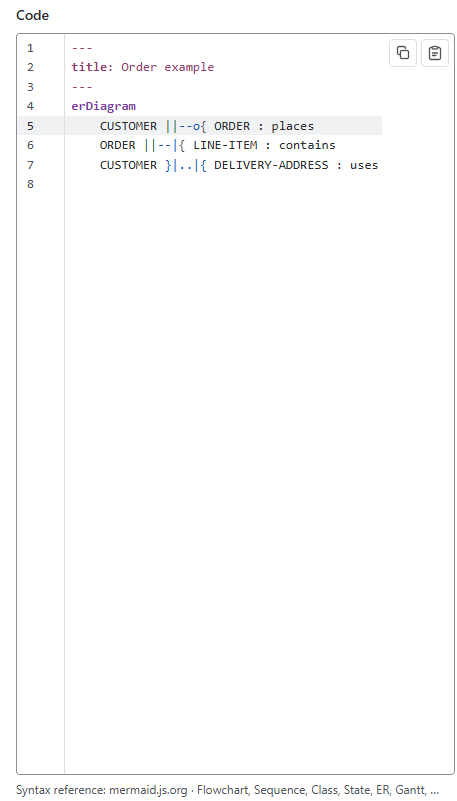
Type in the code area; the preview follows a moment after you stop typing.
The two small buttons at the top right of the code area:
- Copy copies all the code to the clipboard.
- Paste pastes from the clipboard at the cursor. If your browser blocks it inside Confluence, press Ctrl + V (⌘ + V) instead.
4.2 Find and fix errors
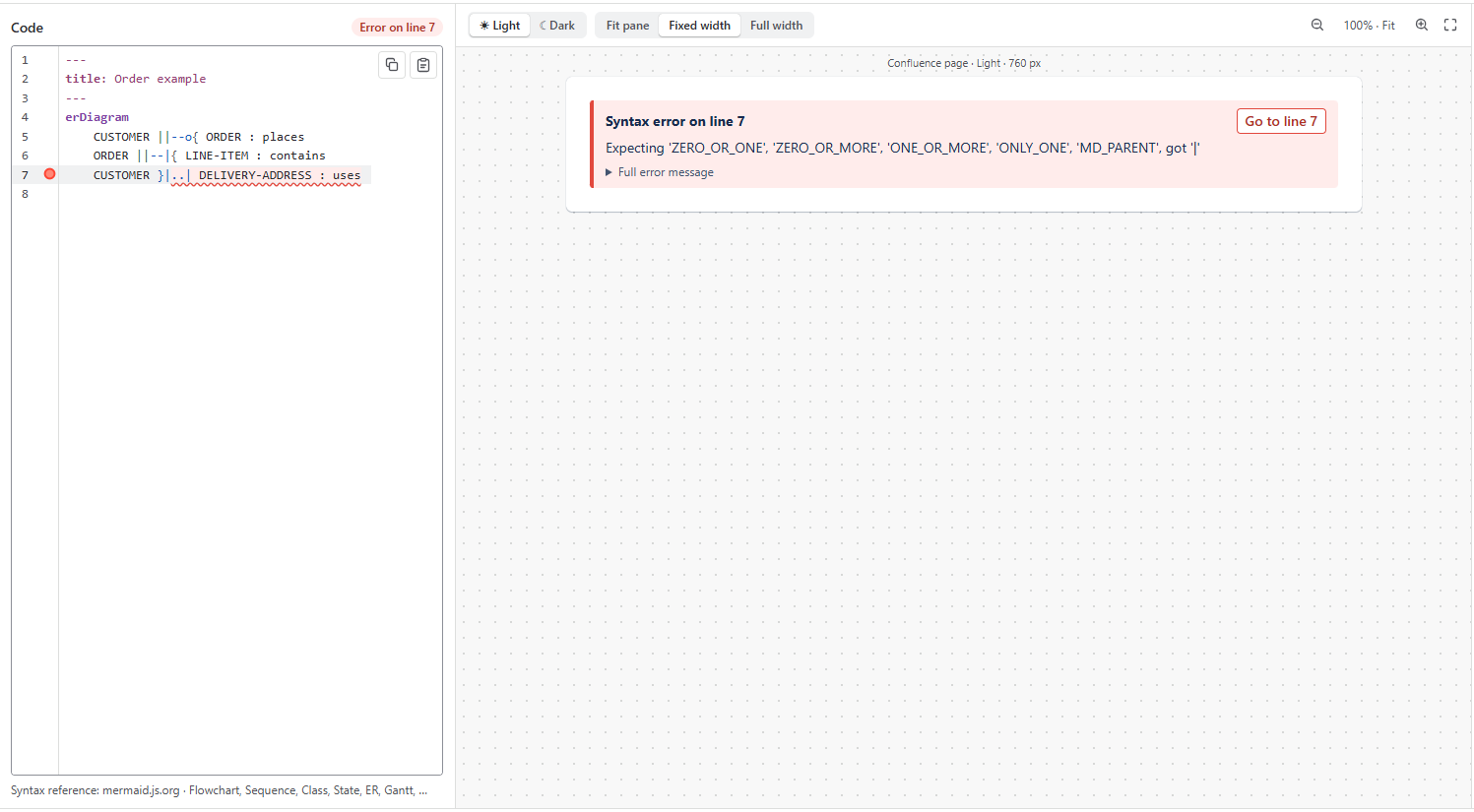
When Mermaid can't read your code, Diagramaid shows you where:
- The line is underlined in red, with a red marker next to its number. Point at the marker to read the message.
- Error on line N above the code jumps to that line.
- The preview explains the error, with a Go to line N button. Full error message shows Mermaid's complete message.
Common causes
| Problem | Example | Fix |
|---|---|---|
| Missing or misspelt diagram type on the first line | flowchar LR | flowchart LR |
| Special characters in a label | A[Price (EUR)] | Put the label in quotes: A["Price (EUR)"] |
| Two arrows in a row | A --> --> B | A --> B |
| A bracket not closed | A[Start --> B | A[Start] --> B |
Indentation in YAML (--- block) | a config: key not indented | Indent the keys under config: with two spaces |
4.3 Save work in progress
If the code still has an error, the button reads Save anyway. You can save and come back later: until the error is fixed, the page shows the error box instead of the diagram.

#5. Change how the diagram looks
All display options are in the Settings panel. Each section shows its current value while it is closed (for example Fit width or Auto · Card). Point at an ⓘ icon for help on an option. Every change shows in the preview straight away and is stored when you click Save.
5.1 Presets
The three buttons at the top set several options in one click. Your code and caption stay as they are, and you can fine-tune everything afterwards.
| Preset | Best for | What it sets |
|---|---|---|
| Documentation | Everyday pages | Follows Confluence light/dark mode, fits the page, all reader tools including View Mermaid code |
| Presentation | Pages you show on a screen | Colourful theme (Redux Color), Neo look, right-angle edges, a card frame, a tall fixed height, zoom and full screen only |
| Minimal | Clean pages, small diagrams | Neutral theme, transparent background, no toolbar |
The button of the active preset is highlighted.
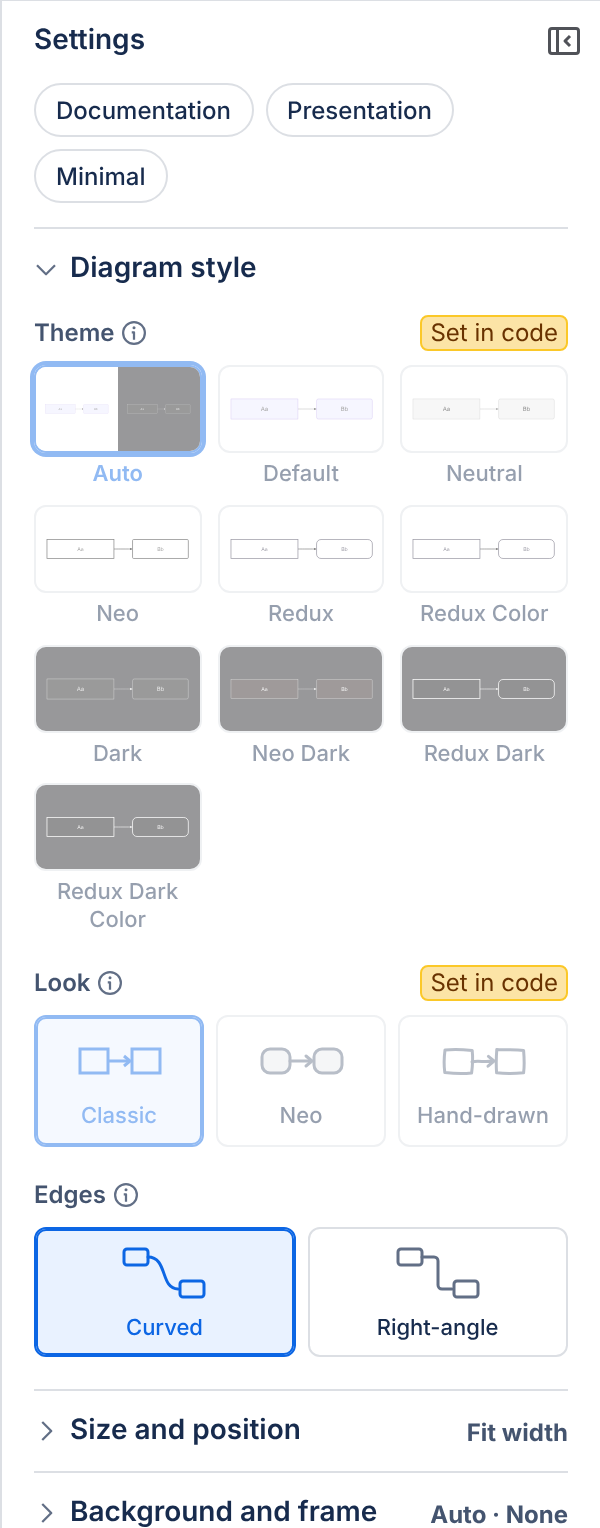
5.2 Diagram style
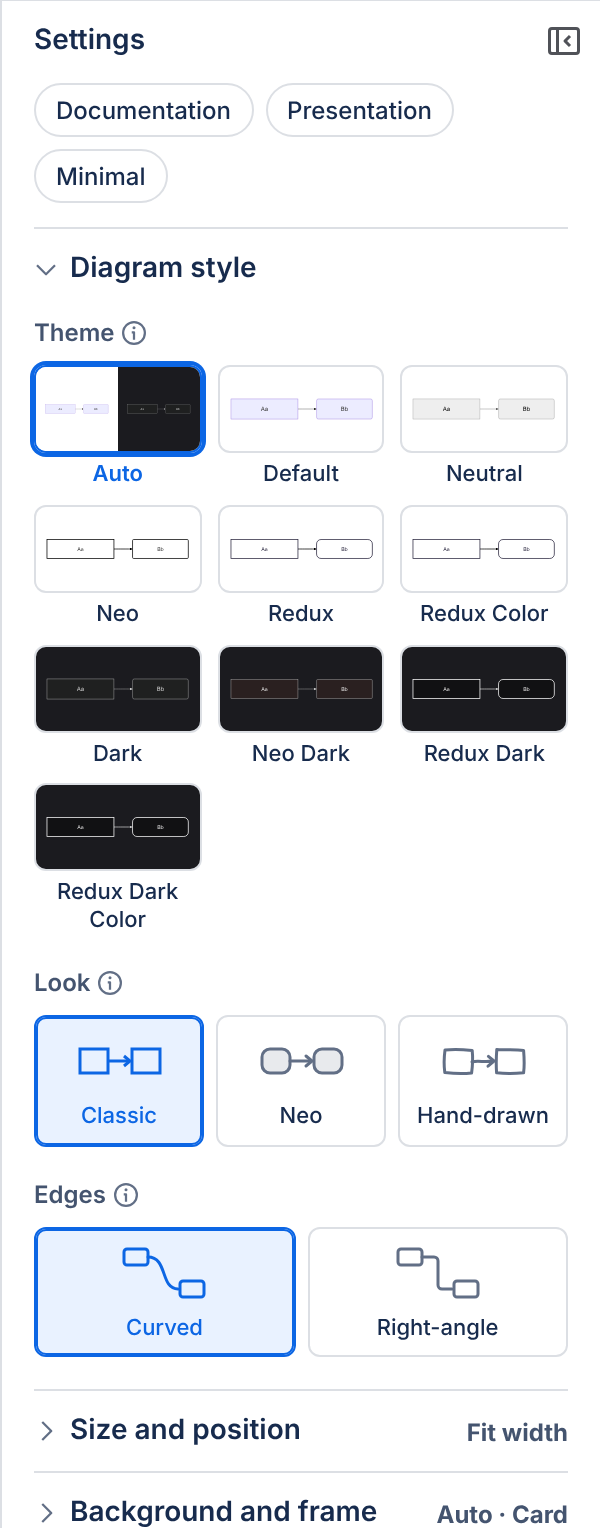
Theme sets the colours. Each tile is a small sample of the real theme.
- Auto (recommended) uses the Default theme on a light page and the Dark theme on a dark page, so the diagram always matches Confluence.
- Light themes: Default, Neutral, Neo, Redux, Redux Color.
- Dark themes: Dark, Neo Dark, Redux Dark, Redux Dark Color. They get a dark background so they stay readable on a light page.
Look sets the drawing style:
- Classic: the standard Mermaid look.
- Neo: softer, rounded shapes.
- Hand-drawn: a sketchy, whiteboard style, good for drafts and ideas.
Edges sets how lines are drawn between shapes:
- Curved: smooth curves (the standard layout).
- Right-angle: straight lines with right-angle turns, often tidier for large diagrams.
Look and Edges work for flowcharts, state, class and ER diagrams. Other diagram types ignore them.
5.3 Size and position
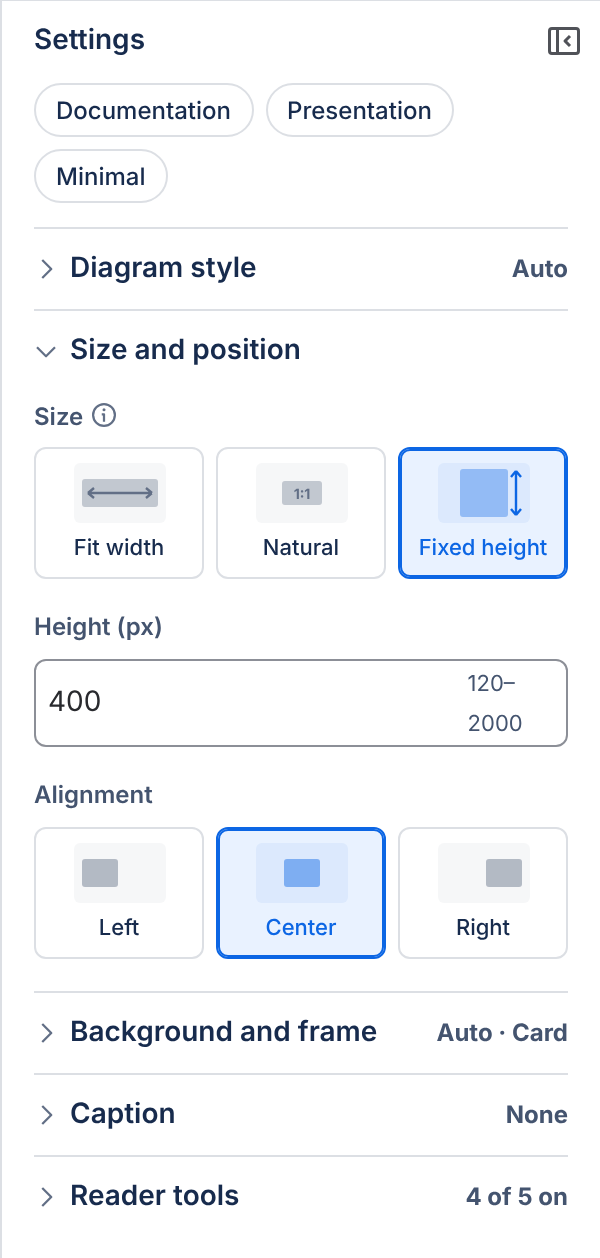
Size
- Fit width (default): wide diagrams shrink to fit the page width; small diagrams keep their natural size and are never blown up.
- Natural: the diagram keeps its original size, even if it is wider than the page. Readers drag to see the rest.
- Fixed height: the diagram is scaled to fit a box of the height you enter (120 to 2000 pixels). Useful for very tall diagrams, together with the zoom tools.
Alignment places the diagram on the left, in the center or on the right of the page.
5.4 Background and frame
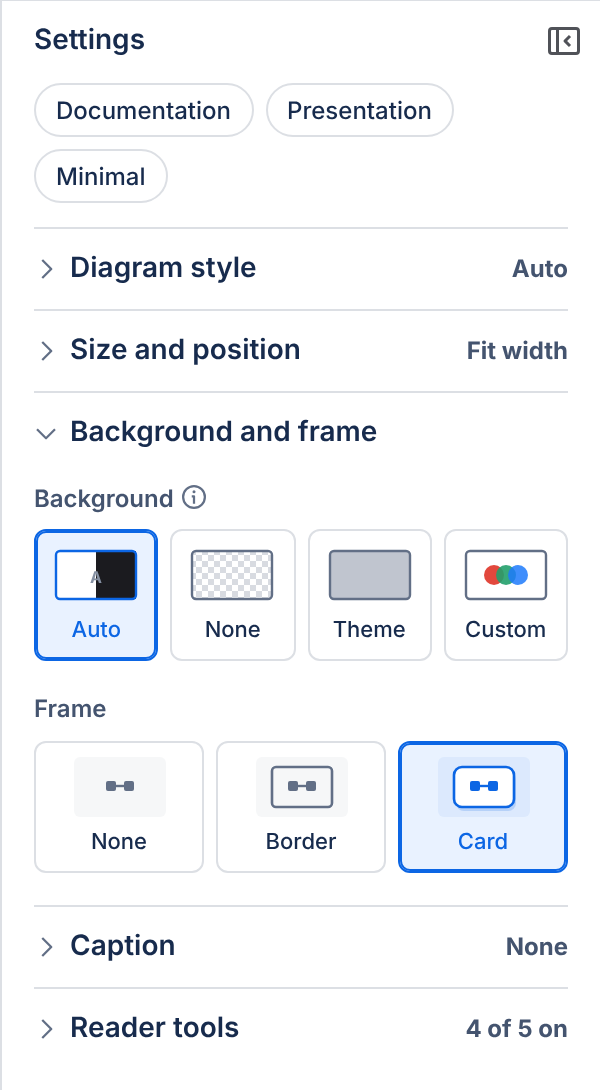
Background
- Auto (recommended): dark themes get a dark background; light themes get white when the reader uses Confluence in dark mode. Otherwise the page shows through. Diagrams stay readable in both modes.
- None: always transparent, the page shows through. In the preview a transparent background is shown as a grey checkerboard.
- Theme: always paints the theme's own colour (white or dark).
- Custom: a colour you pick.
Frame
- None: no frame.
- Border: a thin line around the diagram.
- Card: rounded corners and a soft shadow.
5.5 Caption and reader tools
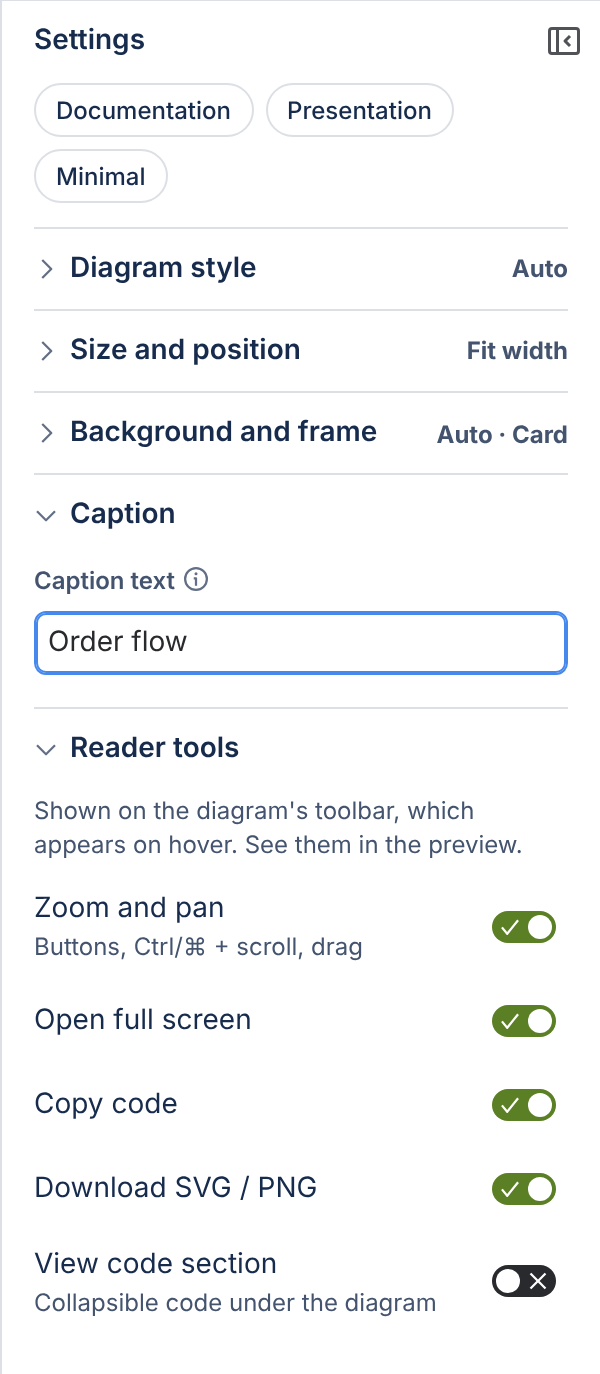
Caption is a short text shown under the diagram, for example Order flow. It is also used as the file name when readers download the diagram (order-flow.svg).
Reader tools choose what readers get on the diagram's toolbar:
| Switch | Gives readers |
|---|---|
| Zoom and pan | Zoom buttons, Ctrl/⌘ + scroll, dragging |
| Open full screen | The full-screen viewer |
| Copy code | A button that copies the Mermaid code |
| Download SVG / PNG | Download buttons |
| View code section | A collapsible View Mermaid code section under the diagram |
Turn all of them off for a plain picture without a toolbar.
5.6 Settings in the code ("Set in code")
Advanced users can put Mermaid's own settings at the top of the code, in a config: block between two --- lines:
---
config:
  theme: neutral
  look: handDrawn
  layout: elk
---
flowchart LR
    A --> B
Settings in the code always win. When the code sets the theme, look or layout (edges), the matching control in the Settings panel shows a yellow Set in code badge and is greyed out. Remove the line from the code to use the panel again.
%%{init: { "theme": "dark" }}%% directives at the top of the code work the same way.
#6. Read and use a diagram
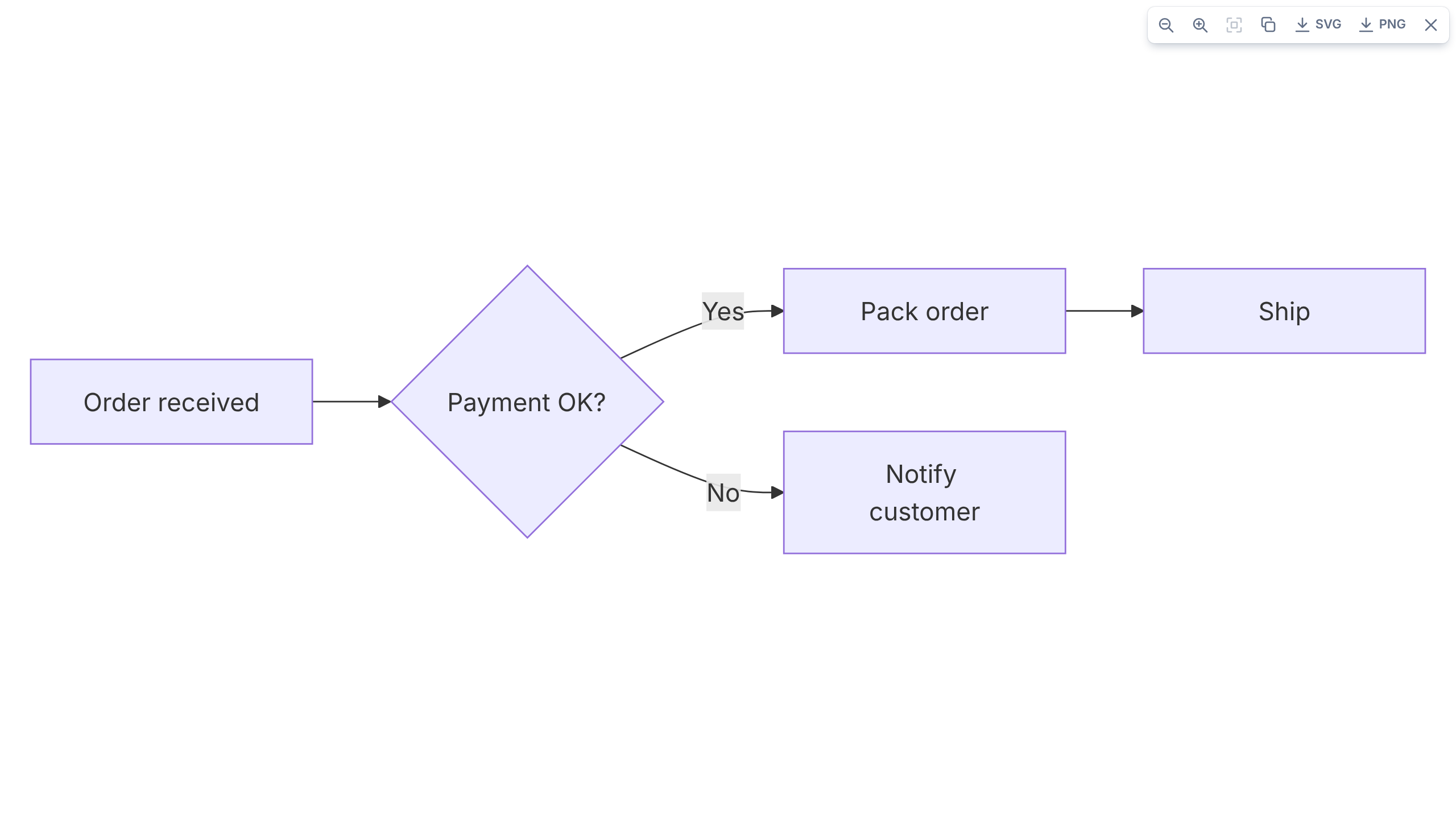
On the page, point at a diagram to show its toolbar in the top-right corner. On a touch screen the toolbar is always visible. The author decides which buttons are shown (see 5.5).
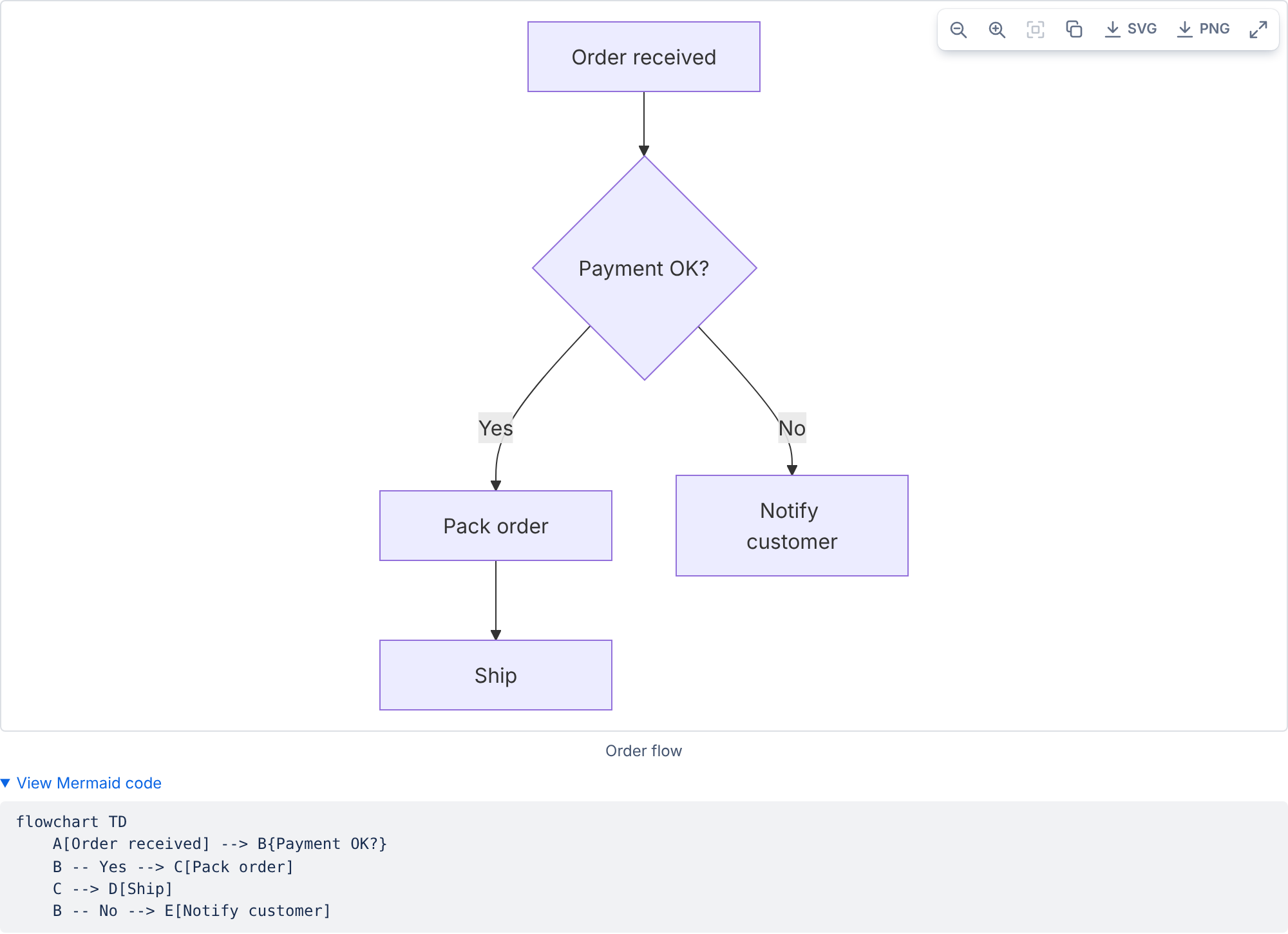
The toolbar

| Button | What it does |
|---|---|
| Zoom out / Zoom in | Zooms the diagram, from 20% to 800%. |
| Reset zoom | Back to 100% and the original position. |
| Copy Mermaid code | Copies the diagram's code, e.g. to reuse it on another page. |
| SVG | Downloads the diagram as an SVG file: a vector picture that stays sharp at any size, for documents, slides and wikis. |
| PNG | Downloads the diagram as a PNG image, at twice the screen resolution for sharp text, for email and chat. |
| Open full screen | Opens the diagram in a full-screen viewer. |
A short message on the toolbar confirms actions such as Code copied, or says when the browser blocked one.
Zoom and pan with mouse, trackpad and keyboard
| To | Do this |
|---|---|
| Zoom | Ctrl + scroll (⌘ + scroll on a Mac) or pinch on a trackpad. A plain scroll keeps scrolling the page. |
| Move around (pan) | Drag the diagram. On a touch screen, drag with one finger once you have zoomed in. |
| Reset | Double-click the diagram. |
| With the keyboard | Press Tab until the diagram is focused, then + / − to zoom, 0 to reset and the arrow keys to pan. |
Full-screen viewer
Open full screen shows the diagram on its own, as large as your screen. There, the scroll wheel zooms directly, and the toolbar stays visible. Close the viewer with the × button or Esc.
View the code
If the author turned it on, View Mermaid code under the diagram opens the code. Select it to copy part of it.
#7. Light and dark mode
Diagramaid follows the reader's Confluence theme (light, dark or match browser). With the Auto theme and Auto background, the diagram switches with it, and changes as soon as a reader switches theme, without reloading the page.
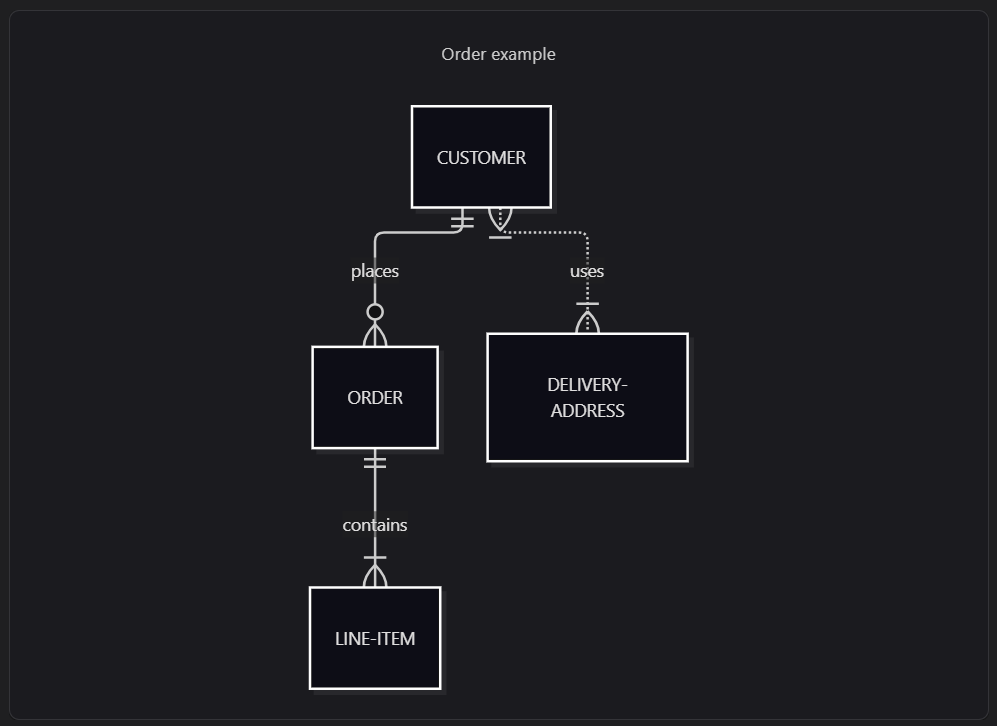
If you pick a fixed theme instead and keep the Auto background, Diagramaid keeps it readable: a dark theme gets a dark background on light pages, and a light theme gets a white background on dark pages. Use the ☀ Light / ☾ Dark switch in the preview to check both before you save.
The editor itself follows Confluence's mode too:
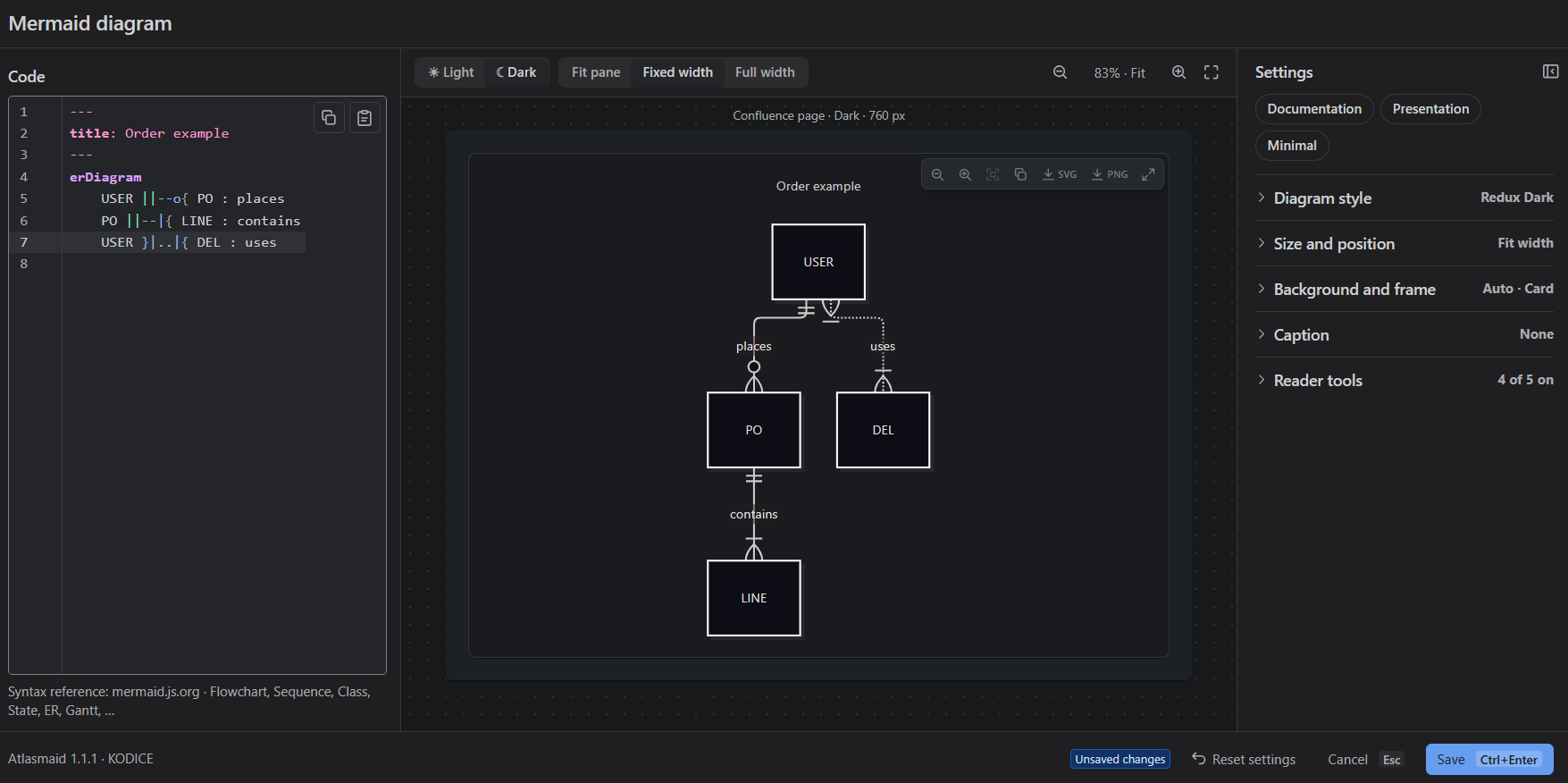
#8. Mermaid quick reference
Diagramaid supports all Mermaid diagram types. The first line of the code names the type. A few common ones to get started:
Flowchart (process, decisions):
flowchart LR
    A[Order received] --> B{Payment OK?}
    B -- Yes --> C[Pack order]
    C --> D[Ship]
    B -- No --> E[Notify customer]
LR draws left to right; use TD for top to bottom. [ ] is a box, { } a decision, ( ) a rounded box and (( )) a circle.
Sequence diagram (who talks to whom):
sequenceDiagram
    Customer->>Shop: Place order
    Shop->>Payment: Charge card
    Payment-->>Shop: OK
    Shop-->>Customer: Confirmation
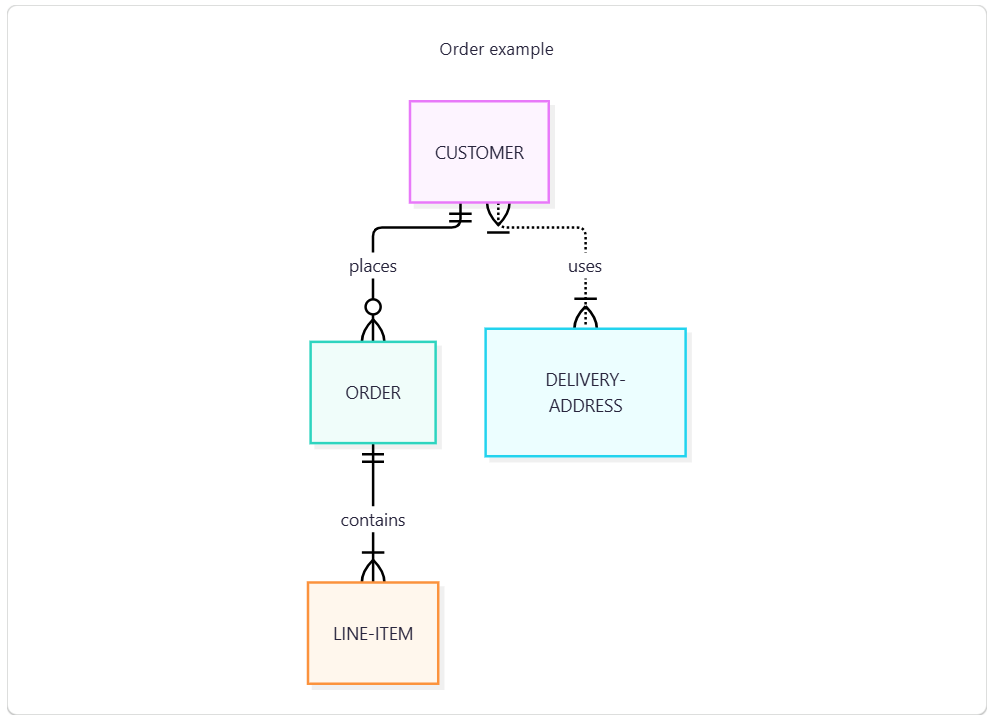
Entity relationship (ER) diagram (data models):
erDiagram
    CUSTOMER ||--o{ ORDER : places
    ORDER ||--|{ LINE-ITEM : contains
Gantt chart (plans and timelines):
gantt
    title Release plan
    dateFormat YYYY-MM-DD
    section Build
        Design      :a1, 2026-11-02, 4d
        Development :a2, after a1, 10d
    section Ship
        Testing     :a3, after a2, 5d
        Launch      :milestone, after a3, 0d
Also available: class, state, pie, mindmap, timeline, Git graph, quadrant, journey, block, packet, architecture and more. Several diagram types on one page, with different looks:
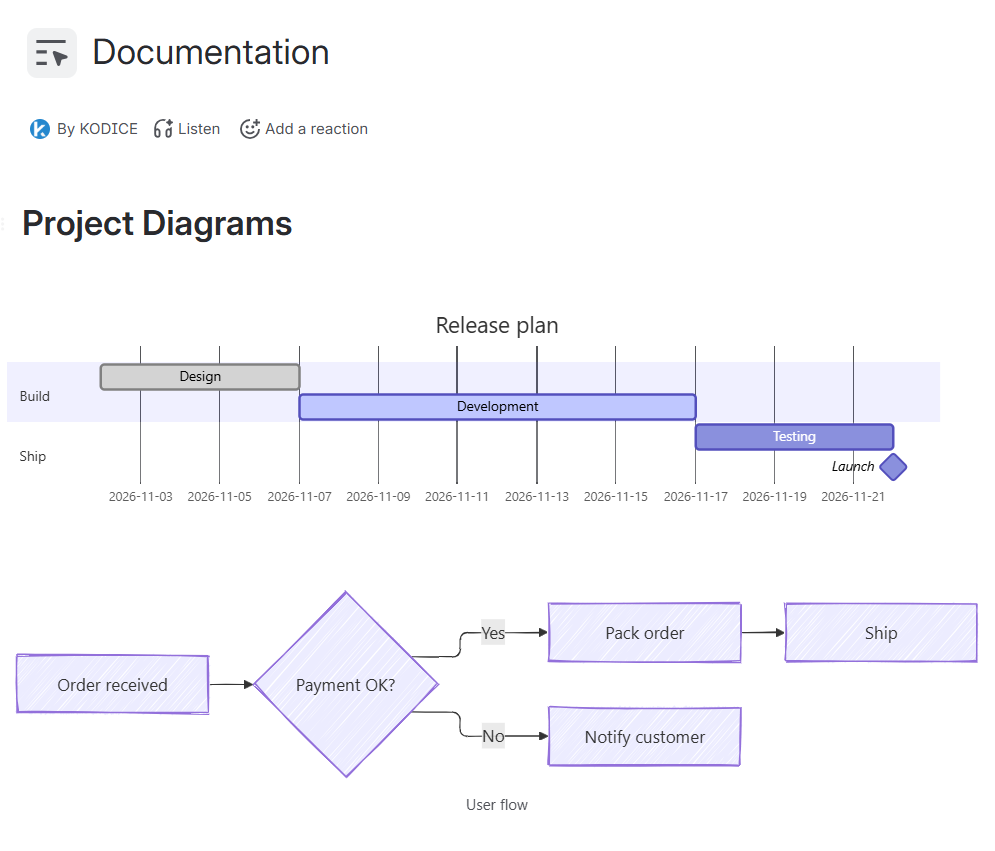
Full syntax for every type: Mermaid syntax reference.
Tip: comments start with %%, e.g. %% TODO: add the returns process. They don't appear in the diagram.
#9. Troubleshooting and FAQ
- I can't find the macro when I type
/mermaid. - The app isn't installed on your site, or not yet available to you. Ask your Confluence administrator.
- The page shows "Syntax error on line N" instead of my diagram.
- The code was saved with an error. Edit the macro, click Go to line N and fix the line (see 4.2).
- The macro says "Diagramaid ran into a problem".
- Something unexpected went wrong while showing the diagram. Reload the page. If it keeps happening, contact support (see section 10). The error is reported to KODICE automatically, without any page content.
- A setting in the panel has no effect / is greyed out.
- The code sets it in its
config:block or an%%{init}%%line. Look for the Set in code badge and see 5.6. - Look or Edges don't change my diagram.
- They only apply to flowcharts, state, class and ER diagrams.
- The Paste button says it was blocked.
- Your browser doesn't let the app read the clipboard inside Confluence. Press Ctrl + V (⌘ + V) instead.
- "Copy was blocked by the browser" or a download does nothing.
- The browser or your organisation's settings blocked it. For copying, use View Mermaid code and select the text. For downloads, try another browser, or the other format (SVG or PNG).
- "Full screen is not available here".
- Confluence didn't allow the full-screen viewer in this view. Use the zoom buttons on the page instead.
- My diagram is too small to read.
- Use Natural or Fixed height with a larger height (5.3), turn on Zoom and pan and Open full screen for readers, or split the diagram in two.
- Icons (
fa:fa-…) or images from the web don't show in my diagram. - Diagramaid never loads anything from the internet, for your security. Icon packs and external images are not supported; use text labels instead.
- The diagram is missing when I export the page to PDF or Word.
- Confluence doesn't include app macros like Diagramaid in PDF or Word exports. Download the diagram as PNG or SVG and insert the image, or share a link to the page.
- My diagram looks slightly different after an app update.
- Diagrams are drawn by the Mermaid version included in Diagramaid (currently 12.2.0). A newer Mermaid version can change spacing or details.
- What happens if the app is uninstalled?
- The code stays stored in the page, as part of the macro. Without the app, Confluence can't draw the diagram; it shows again once the app is reinstalled.
#10. Privacy and support
Your data stays in Confluence
- The diagram code and settings are stored inside the Confluence page, like the rest of its content, with the same permissions and history.
- Diagrams are drawn in your browser. The app has no server of its own, stores nothing outside the page and makes no calls to the internet.
- Copy and download happen on your computer, only when you choose them.
- When something in the app fails, a short technical error message is sent to KODICE through Atlassian's platform, so we can fix the problem. It never contains your diagram, page content or personal data. Your site administrator can turn this off.
Full details: privacy policy and security policy.
Get help
- Email: write to support. We reply within 24 hours.
- Tell us your Confluence site, the page (if you can share it), what you did, what you expected and what happened. A screenshot helps.
- More: support page.
Diagramaid is made by KODICE. Mermaid is an open-source project not affiliated with KODICE or Atlassian. Confluence is a trademark of Atlassian.